How do I create or edit a track in the Web App?
Here's how to manage your tracks in the web app, step by step:
Create your track
- Log in to the Web App: https://tracks.iphigen.ie/ (choose whether you prefer to use your Iphigénie or Whympr credentials)

- Once the map has loaded, select a base map on the right.

- Click on the starting point of your track on the map (simply click with your cursor on the map where you want to start the track).
A window will open with the message “Create a track”.

- Select a tracking mode:
- 🛣️ Automatic (trail tracking)
- ✏️ Manual (point-by-point)

- Click on the end point: your track is generated automatically.

Edit your track
To edit a track you've already created:
- Select it from the left panel (track list).
- Click the “Edit” button in the top-left corner (green).
- You can now:
- Move points (click and hold)
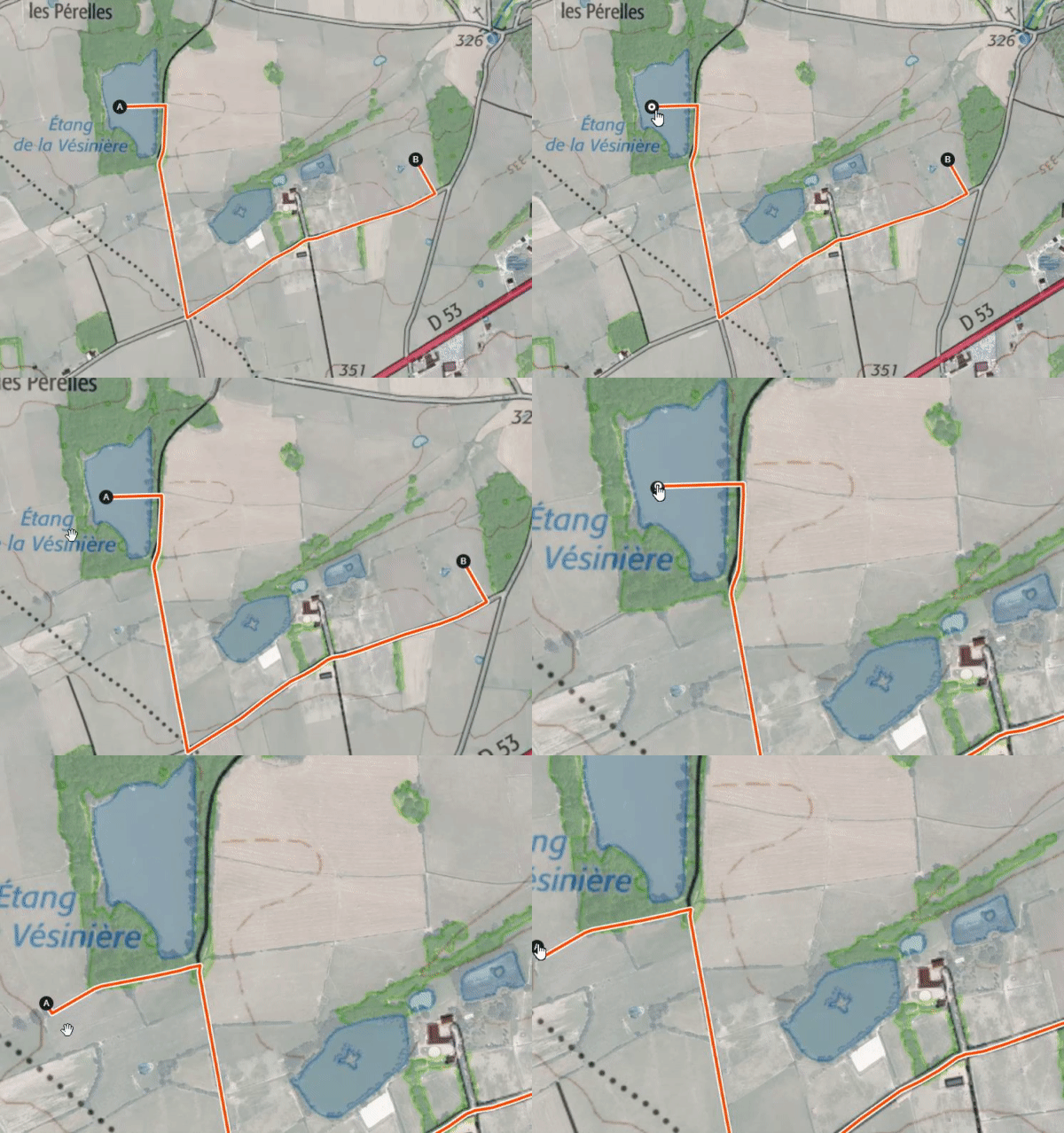
- Add a break or a resume:
- Zoom in to display the white dots on the track
- Click on a point > options: “resume track here” or “delete from here”

Save your track
- Click the green “Save” button (top left).
- Required fields:
- A Name
- A Group
- A Subgroup
⚠️ Without these three items, the save will fail.

Are you having trouble saving? Here are the steps to check: Why isn't the “Save” button working on the Webapp?
Want to learn more about using the Web App? Watch this feature presentation by Tim Maclean, CEO of Iphigénie:
Updated on: 07/05/2026
Thank you!